Appearance
Filter
Core Feature
This feature is available in all MATISSE Explorer deployments.
The Filter allows you to build filter queries by combining multiple conditions with logical operators. This powerful tool enables precise data selection based on annotations, lasso selections, and variable sets.
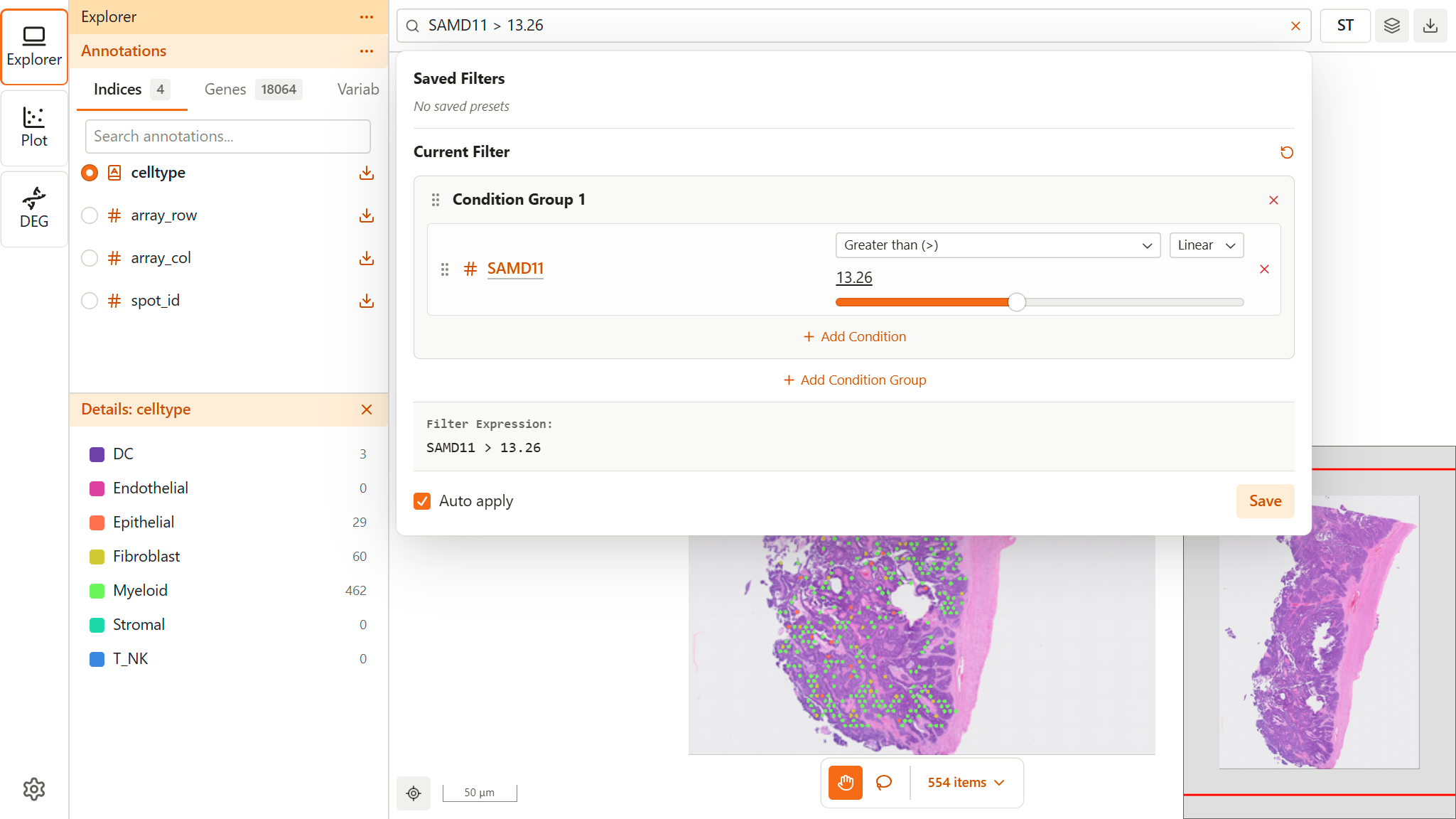
Opening the Filter
Access the Filter from the Explorer view:
- Click the Filter button in the map viewer toolbar
- The Filter Panel opens
Filter Structure
Filters use a hierarchical structure:
Filter
├── Group 1
│   ├── Condition A  ─┬─ AND/OR
│   ├── Condition B  ─┤
│   └── Condition C  ─┘
│
├── AND/OR (group operator)
│
└── Group 2
    ├── Condition D  ─┬─ AND/OR
└── Condition E ─┘- Conditions - Individual filter rules
- Groups - Collections of conditions combined with AND/OR
- Group Operator - Combines multiple groups with AND/OR
Condition Types
Column Condition
Filter by annotation values from your dataset.
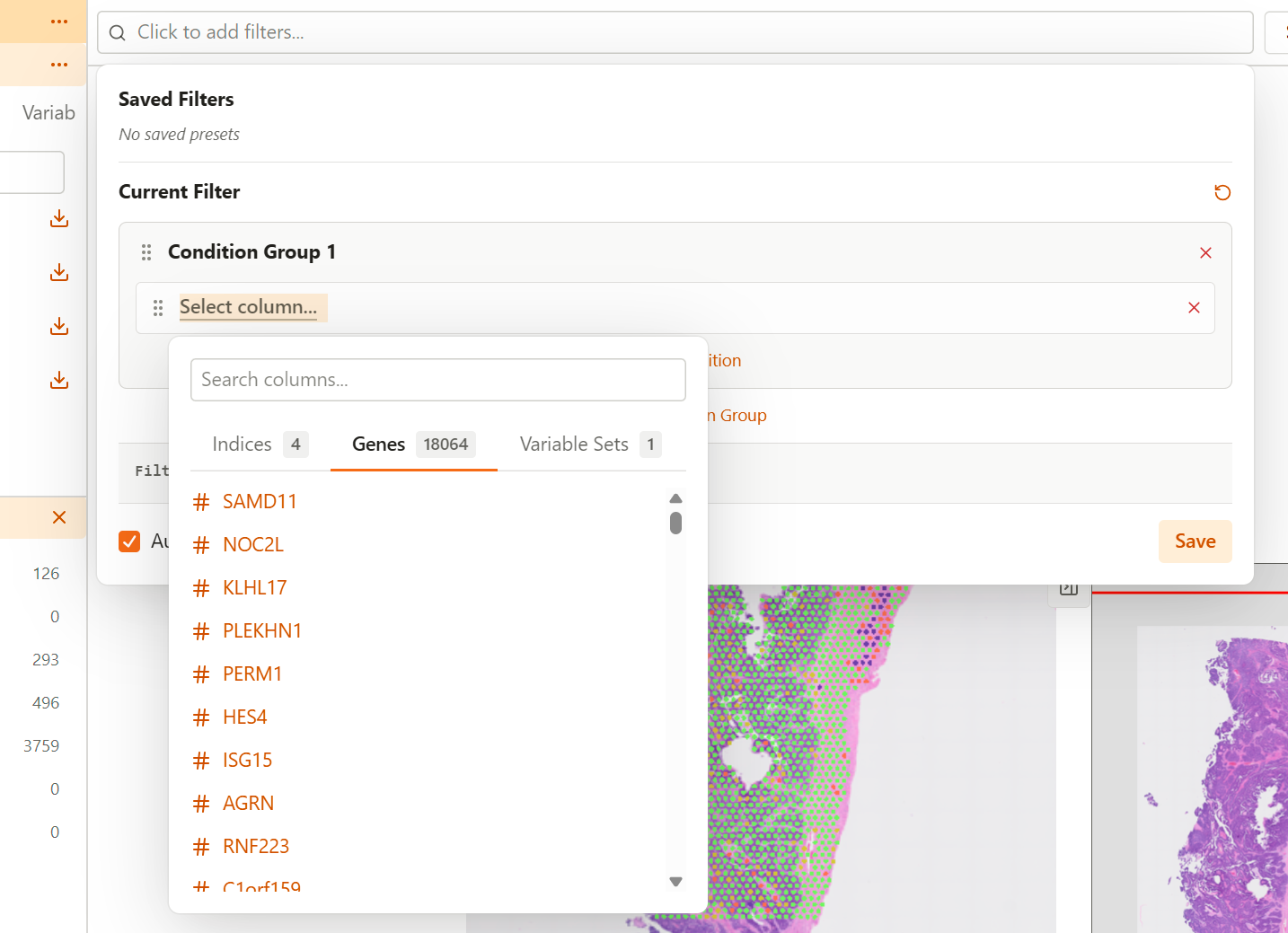
For Categorical Columns:
- Select one or more categories to include
- Points matching any selected category pass the filter
For Continuous Columns:
- Set a value range or comparison
- Available operators:
Operator Meaning Example Range min ≤ value ≤ max Expression between 0.5 and 2.0 > Greater than Expression > 1.0 ≥ Greater or equal Expression ≥ 1.0 < Less than Expression < 0.5 ≤ Less or equal Expression ≤ 0.5
Lasso Condition
Filter by saved lasso selections.
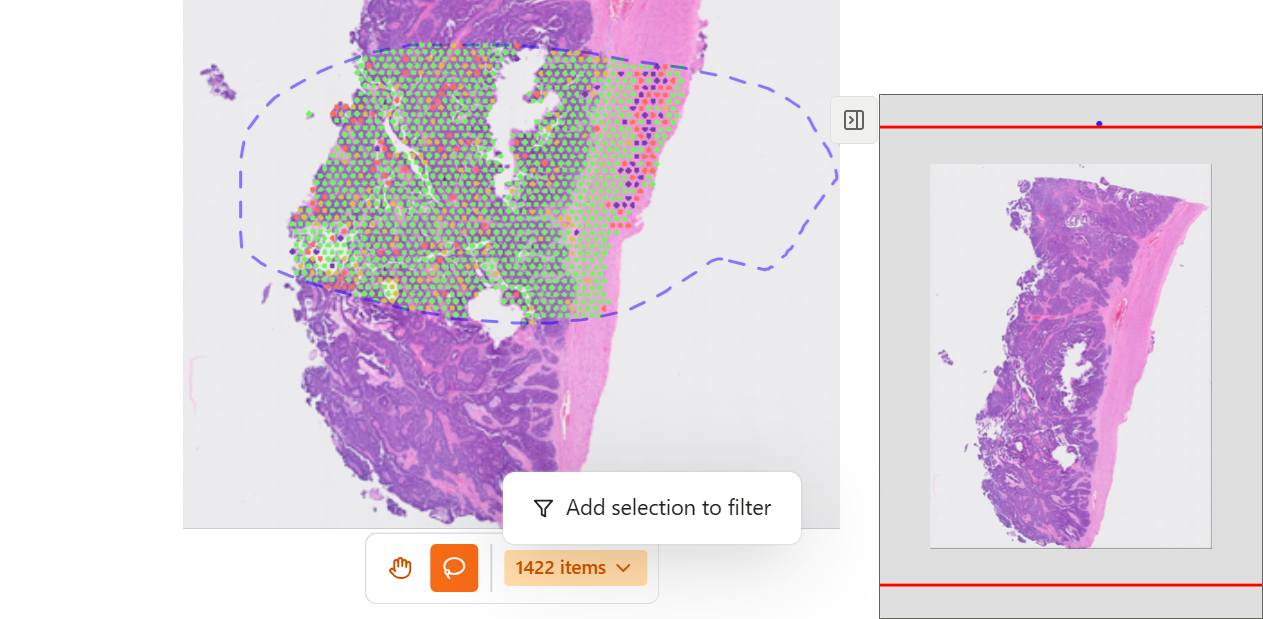
Lasso conditions are created by:
- Drawing a lasso selection on the map or scatter plot
- Clicking "Add selection to filter"
Each lasso condition includes:
- Name - Descriptive name (auto-generated or custom)
- Source - Where it was drawn (Spatial, UMAP, t-SNE, or Scatter Plot)
- Polygon - The boundary coordinates (stored internally)
Variable Set Condition
Filter by computed variable set scores.
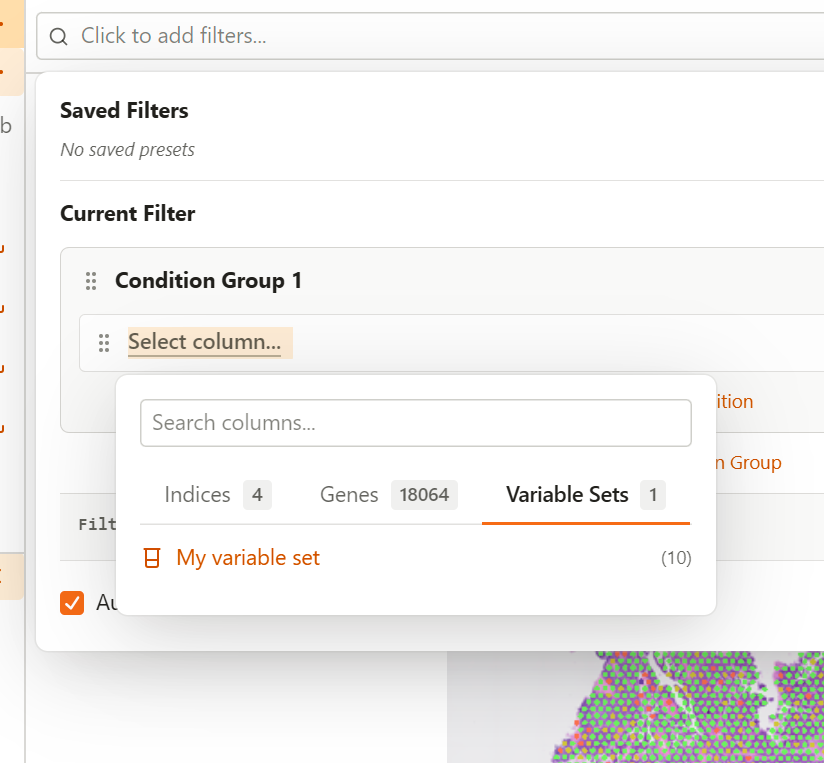
Configure:
- Variable Set - Select from your created variable sets
- Combination Method - How to compute the score
Method Description Max Maximum value across variables Min Minimum value across variables Sum Sum of all variable values Avg Average of all variable values UMI Count Normalized: ln(10000 × sum/totalUMI + 1) - Comparison - Range or comparison operator with threshold
Creating Conditions
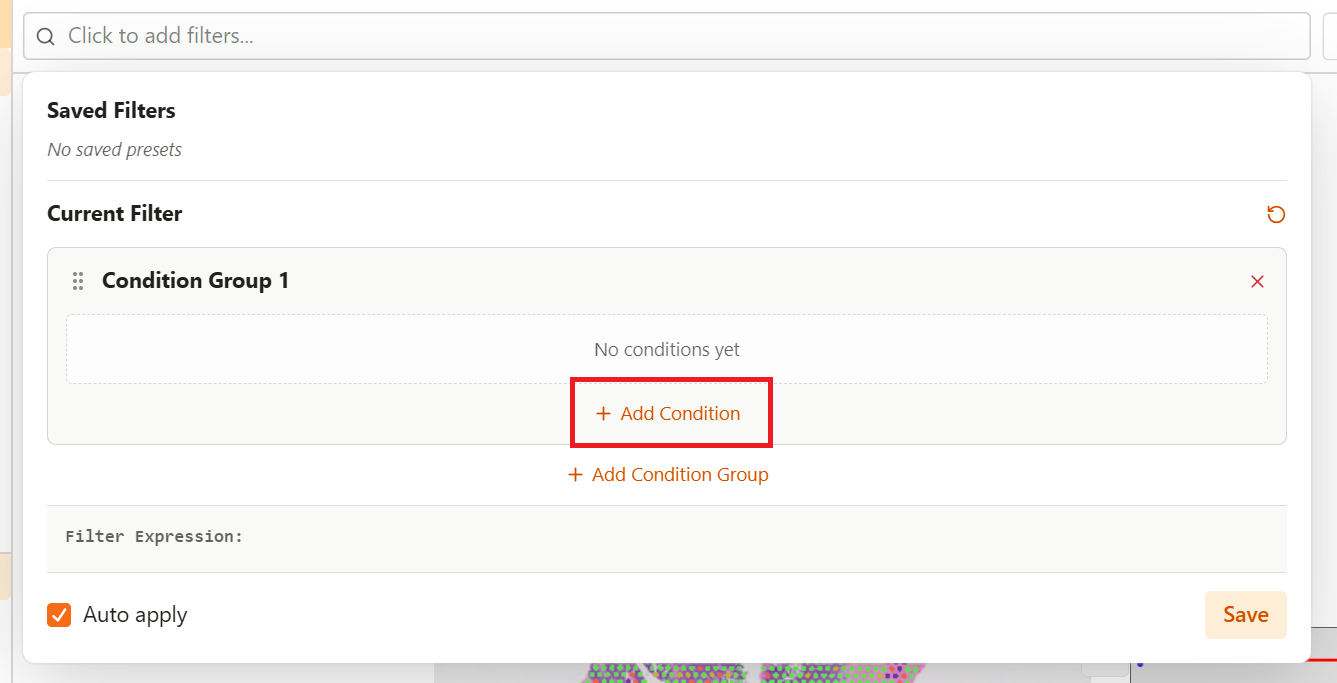
Add a New Condition
- Click Add Condition within a group
- Select the condition type (Column, Lasso, or Variable Set)
- Configure the condition parameters
- The filter updates preview automatically
Configure Column Condition
- Click the column selector dropdown
- Choose an annotation column
- For categorical: select categories from the list
- For continuous: set operator and value(s)
Configure Lasso Condition
Lasso conditions are added from the map viewer:
- Draw a lasso selection
- Click "Add selection to filter" from the Items dropdown
- The lasso appears as a condition in the filter editor
Configure Variable Set Condition
- Select a variable set from the dropdown
- Choose the combination method
- Set the comparison operator and value
Working with Groups
Add a New Group
- Click Add Group at the filter level
- A new empty group appears
- Add conditions to the group
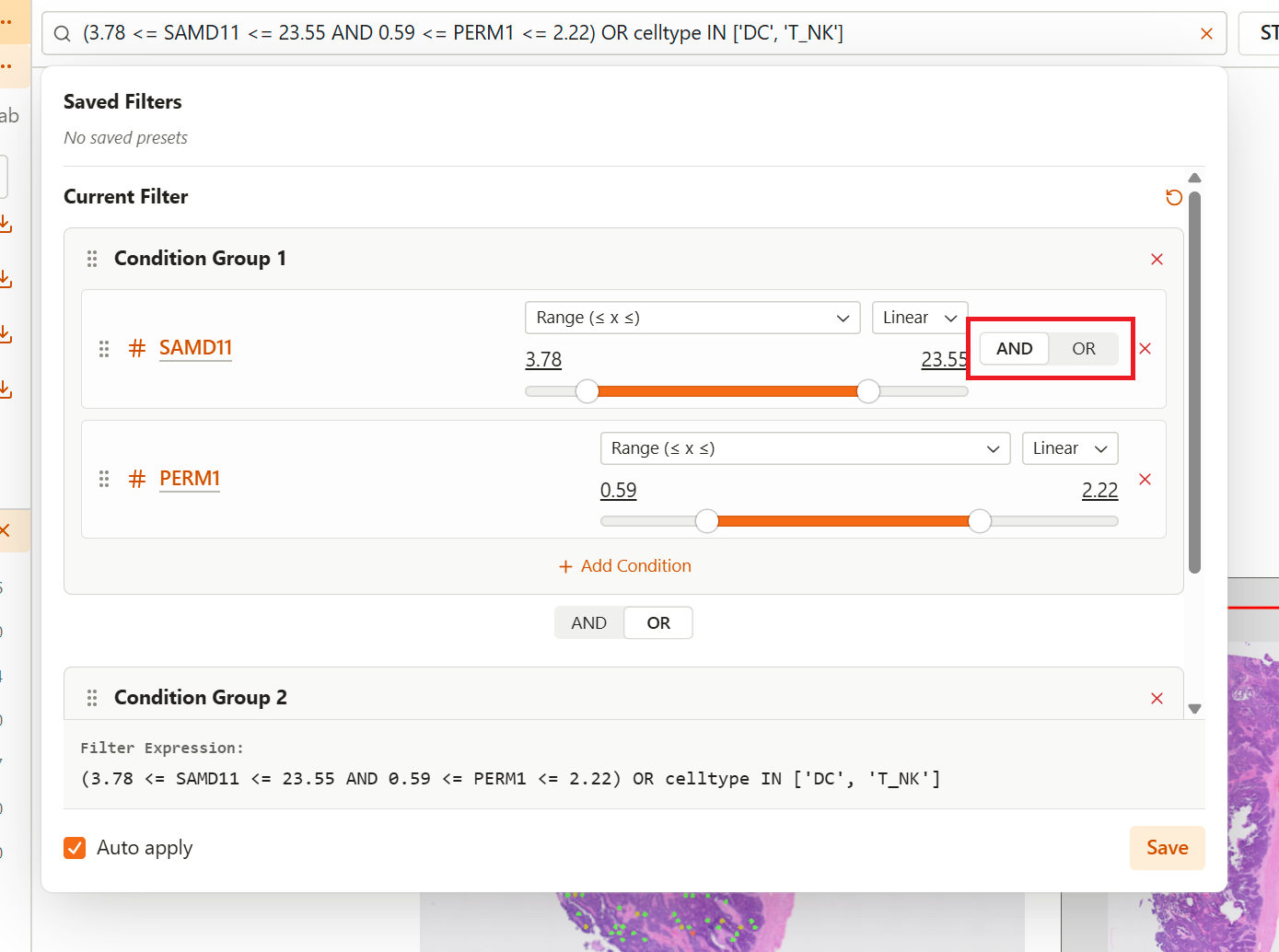
Set Group Operator
Choose how conditions within a group combine:
- AND - All conditions must match (intersection)
- OR - Any condition can match (union)
Set Filter Group Operator
Choose how multiple groups combine:
- AND - Points must match all groups
- OR - Points can match any group
Logical Operators Explained
AND Logic
Condition A AND Condition BResult: Only points that satisfy both conditions
Example: Cell type = "T cell" AND CD3E > 1.0 → Shows only T cells with high CD3E expression
OR Logic
Condition A OR Condition BResult: Points that satisfy either or both conditions
Example: Cell type = "T cell" OR Cell type = "NK cell" → Shows all T cells and NK cells
Combining Groups
(A AND B) OR (C AND D)Result: Points matching Group 1 OR points matching Group 2
Example:
- Group 1: Region A AND high expression
- Group 2: Region B AND low expression → Shows high expressors in Region A plus low expressors in Region B
Managing Conditions
Edit a Condition
Click on any condition parameter to modify it:
- Change the column/variable set selection
- Adjust values or operators
- The filter recalculates automatically
Remove a Condition
- Locate the condition to remove
- Click the X or delete button
- The condition is removed from the group
Remove a Group
- Remove all conditions from the group, or
- Click the group's delete button
- The entire group is removed
Applying Filters
Preview
As you build your filter, the map view updates to show matching points. The point count indicates how many items pass the filter.
Apply
Click Apply to confirm and apply the filter. The filtered view becomes active.
Clear
Click Clear or remove all conditions to reset the filter and show all points.
Complex Filter Examples
Example 1: Specific Cell Type in Region
Goal: Find B cells in a specific tissue region
Group 1 (AND):
├── Column: cell_type = "B cell"
└── Lasso: "Germinal Center" (spatial selection)
Example 2: High Expression of Gene Set
Goal: Find cells highly expressing immune genes
Group 1 (AND):
├── Variable Set: "Immune Markers" (Max)
└── Comparison: > 2.0
Example 3: Multiple Regions Comparison
Goal: Compare two tissue regions
Filter (OR):
├── Group 1 (AND):
│   ├── Lasso: "Region A"
│   └── Column: n_genes > 1000
│
└── Group 2 (AND):
    ├── Lasso: "Region B"
    └── Column: n_genes > 1000
Tips and Best Practices
- Start simple - Begin with one condition, then add complexity
- Use preview - Check results as you build the filter
- Name lasso selections - Use descriptive names for saved regions
- Save presets - Store frequently used filters for reuse
- Consider performance - Very complex filters may take longer to compute
Troubleshooting
No Points Match
- Check if conditions are too restrictive
- Verify AND logic isn't excluding everything
- Try relaxing value ranges
Unexpected Results
- Review the logical operators (AND vs OR)
- Check group operator setting
- Verify column values are correct
Filter Not Updating
- Ensure changes are applied
- Check for loading indicators
- Refresh if necessary
Related Topics
- Lasso Selection - Creating lasso conditions
- Filter Presets - Saving and loading filters
- Variable Sets - Creating variable sets