Appearance
Navigation & Zoom
Core Feature
This feature is available in all Portrai Explorer deployments.
Learn how to navigate the map viewer efficiently using mouse controls and projection modes.
Mouse Controls
Pan Mode (Default)
In Pan mode, use your mouse to move around the map:
| Action | Mouse Control | Result |
|---|---|---|
| Pan | Click + drag | Move the view in any direction |
| Zoom in | Scroll wheel up | Zoom into the map |
| Zoom out | Scroll wheel down | Zoom out of the map |
| Quick zoom in | Double-click | Zoom in on clicked location |
Selection Mode
In Selection mode, mouse behavior changes:
| Action | Mouse Control | Result |
|---|---|---|
| Draw lasso | Click + drag | Draw selection boundary |
| Complete selection | Release | Close and apply selection |
See Lasso Selection for details.
Zoom Controls
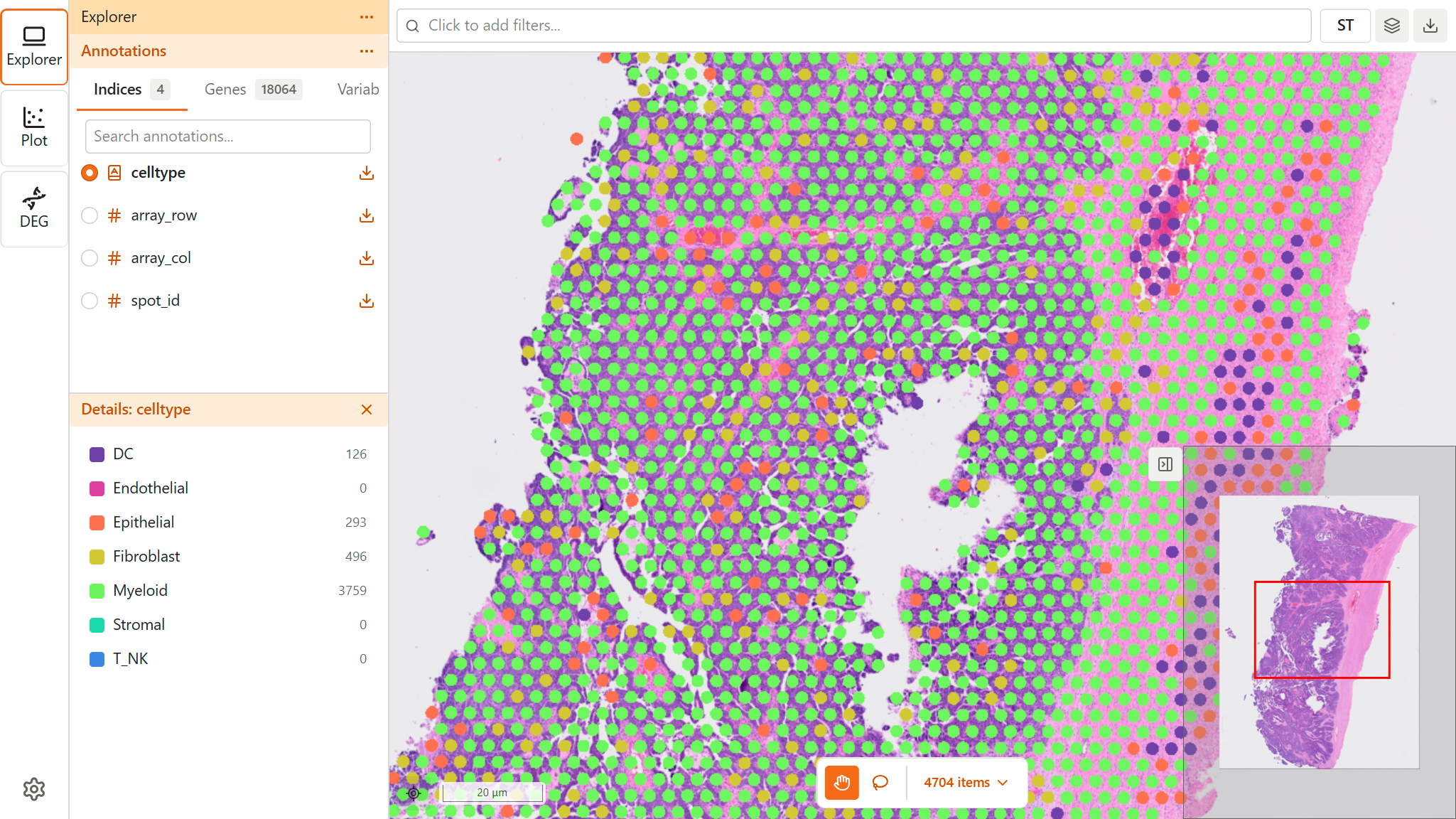
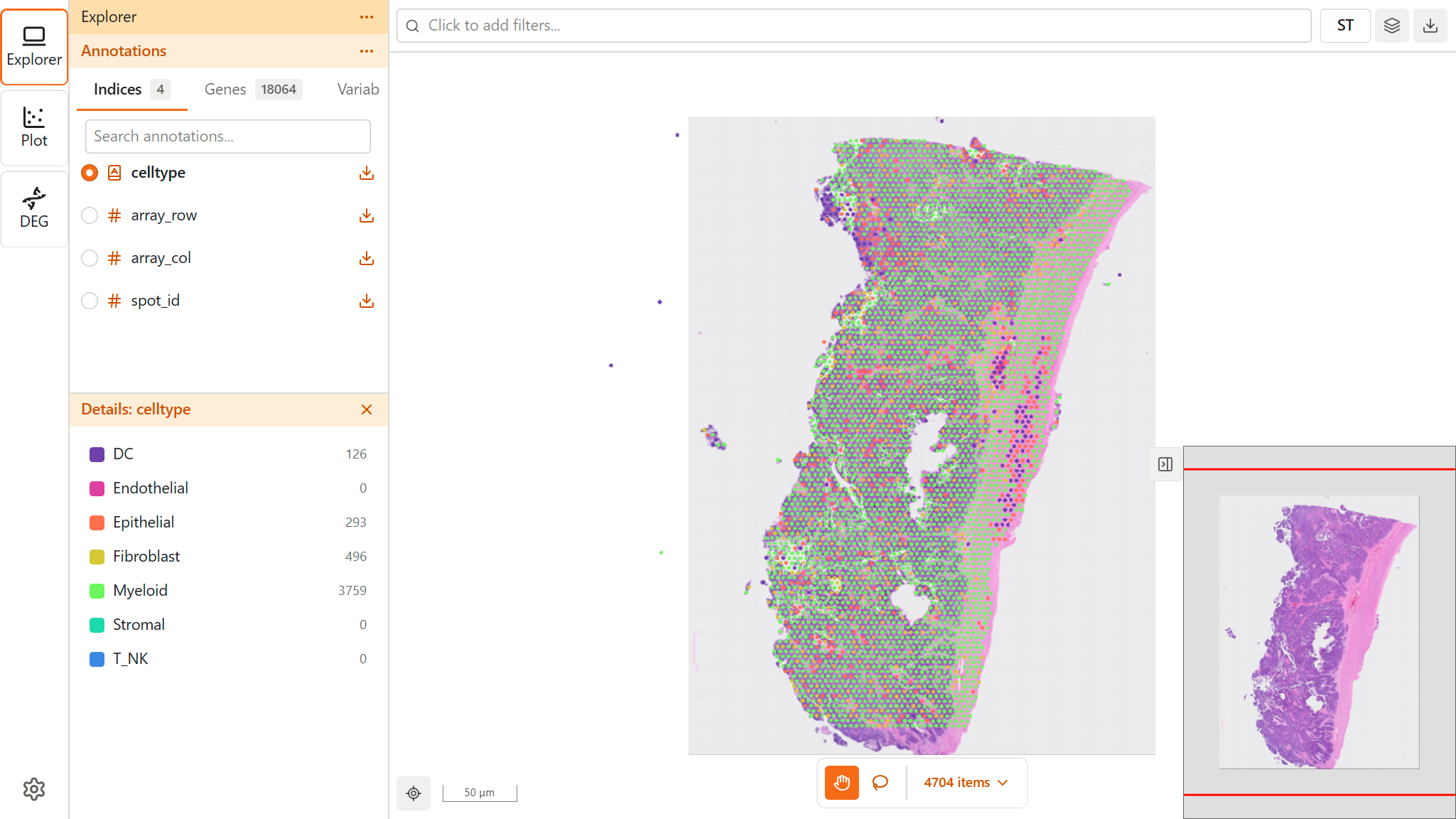
Zoom Levels
The map supports multiple zoom levels:
- Zoomed out - See the entire tissue/sample
- Zoomed in - See individual data points in detail
Zoom to Fit
Reset the view to show all data:
- Look for the Reset button in the bottom-left corner of the map viewer
- Click to reset zoom and position
- The view adjusts to show the entire dataset
Projection Modes
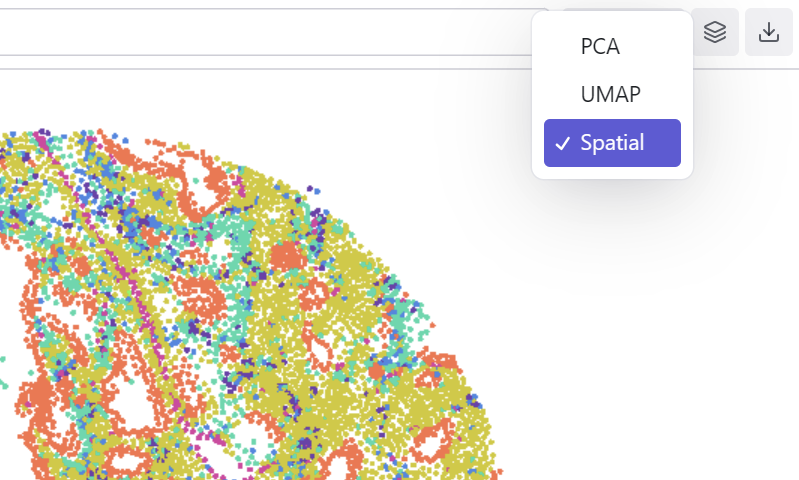
Switch between different coordinate systems to view your data from multiple perspectives.
Available Projections
Available projections depend on your project data. Common examples include:
| Mode | Description | Use For |
|---|---|---|
| Spatial | Original tissue coordinates | Anatomical context |
| UMAP | UMAP embedding | Transcriptional similarity |
| t-SNE | t-SNE embedding | Cluster visualization |
| PCA | PCA embedding | Variance analysis |
Your project may include additional or different projections based on the analysis performed during data preparation.
Switching Projections
- Locate the projection selector — it is the first item in the top toolbar of the map viewer
- Click to open the dropdown (or use the segmented buttons shown when only two or fewer projections are available)
- Select the desired projection
- The view transforms to show the new coordinates
What Changes
When you switch projections:
- Point positions update to new coordinates
- Background image may hide (embeddings have no tissue image)
- Zoom level resets to fit the new view
- Color mapping and subsets remain active
Lasso in Different Projections
Lasso selections are projection-aware:
- Selections in spatial view select by tissue location
- Selections in UMAP/t-SNE select by transcriptional similarity
- Each selection stores its source projection
View State
Preserved State
These settings persist when navigating:
- Current feature/color mapping
- Active subsets
- Point size and opacity settings
Reset State
These reset when changing projections:
- Zoom level (fits to new view)
- Pan position (centers on data)
Performance Tips
Large Datasets
For datasets with millions of points:
- Allow loading time - Initial render may take a moment
- Zoom strategically - Zoomed views render faster
- Use subsets - Reduce visible points for smoother interaction
Smooth Navigation
- Pause between actions - Let rendering complete
- Zoom before panning - Zoom into region, then pan within it
- Use projection wisely - Switch only when needed
Troubleshooting
View is Stuck
- Try clicking the reset/home button
- Refresh the page if necessary
- Check if Selection mode is active (switch to Pan)
Zoom Not Working
- Ensure mouse is over the map area
- Check if zoom controls are disabled
- Try using scroll wheel vs. buttons
Projection Won't Change
- Wait for current view to finish loading
- Check if projection data is available
- Some datasets may not have all projections
Related Topics
- Map Viewer - Complete map viewer documentation
- Lasso Selection - Selection mode details
- Layer Settings - Point appearance