Appearance
Preferences
Core Feature
This feature is available in all Portrai Explorer deployments.
Configure application settings including theme, colorscale preferences, and view version information.
Accessing Settings
Click the Settings icon (gear) at the bottom of the Activity Bar.
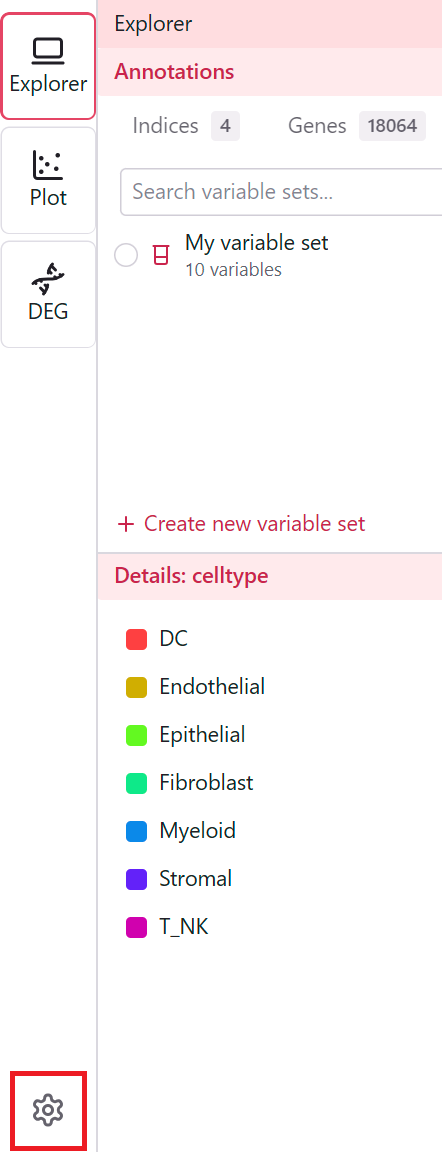
The Settings dialog displays with a search bar and organized sections.
TIP
All settings are stored locally in your browser and persist across sessions.
Settings Search
Use the search bar at the top of the Settings dialog to quickly find settings:
- Type a keyword (e.g., "theme", "color")
- Settings are filtered in real-time
- Only matching items are displayed
Settings Sections
Appearance
Configure visual preferences for the application.
Theme
Choose your preferred visual theme:
| Theme | Description |
|---|---|
| System | Matches your operating system setting |
| Light | Bright background, dark text |
| Dark | Dark background, light text |
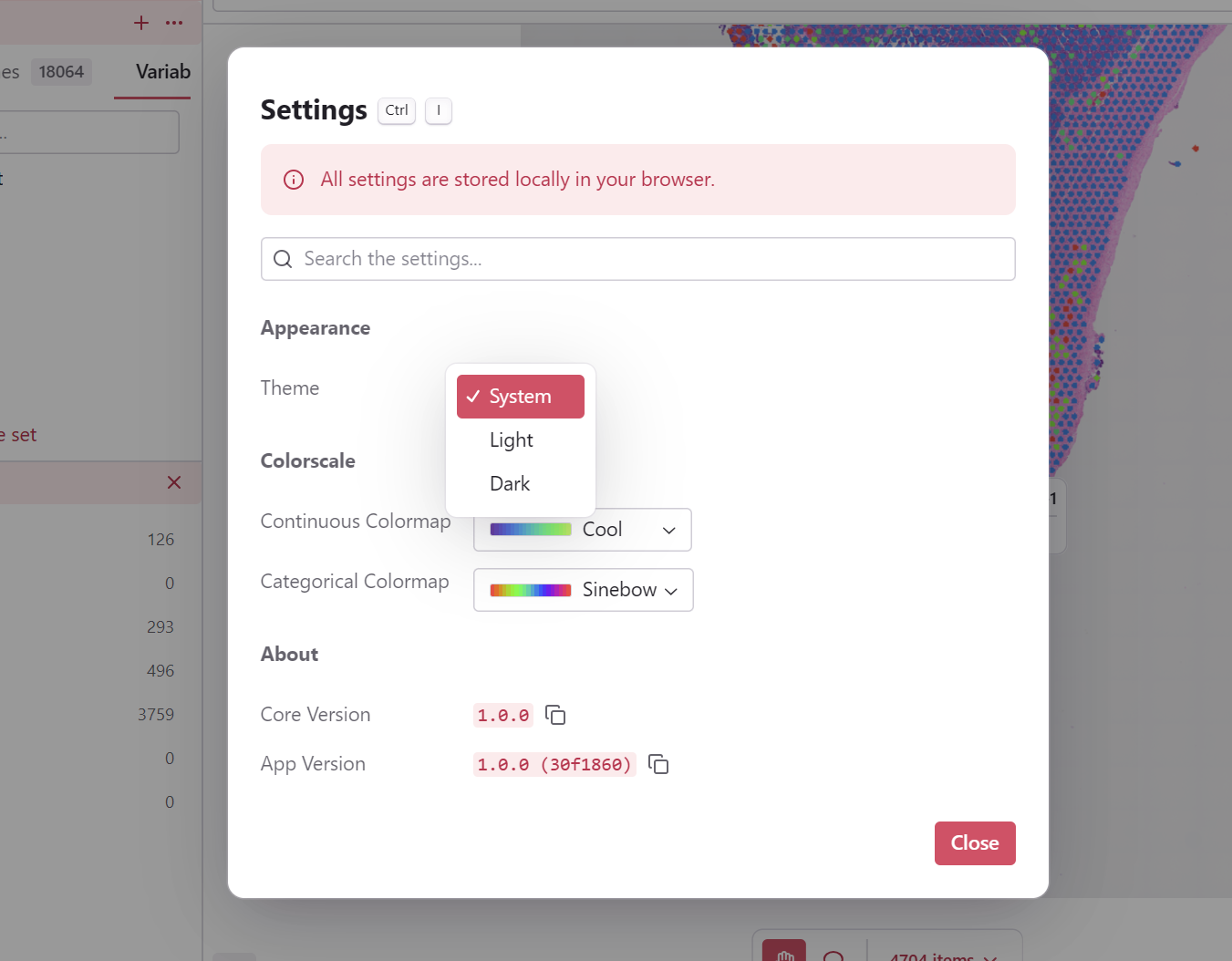
Theme changes apply immediately without requiring a page refresh.
App Color
Customize the application accent color used for buttons, highlights, and interactive elements throughout the interface.
- Select from a range of color options (e.g., Blue, Purple, Green, Red, etc.)
- Each option shows a preview color dot
- Default: Portrai Blue
- Changes apply immediately to the entire application
Colorscale
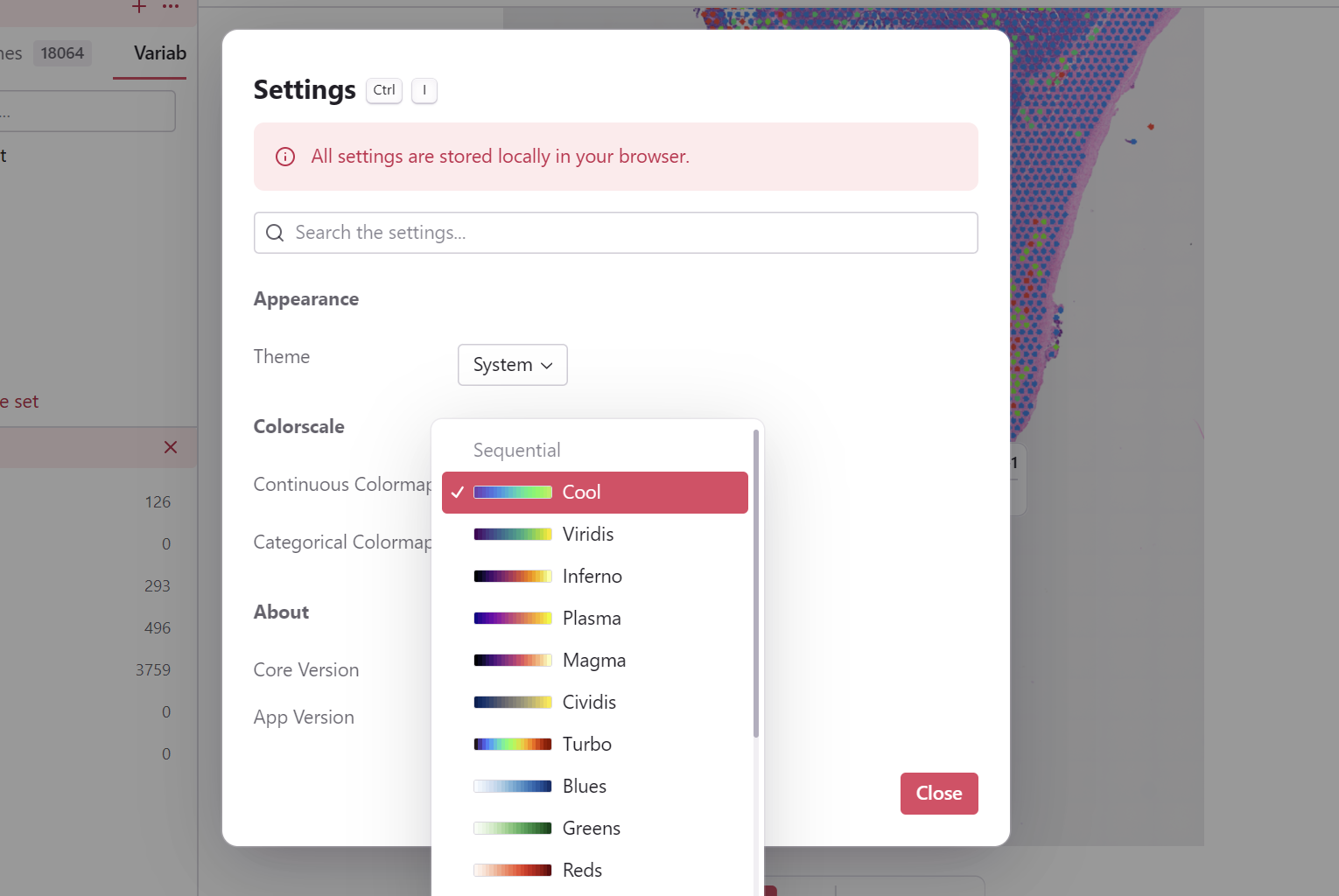
Configure default colormaps used throughout the application for data visualization.
Continuous Colormap
Select the default colormap for continuous data (gene expression, numeric values).
| Category | Colormaps |
|---|---|
| Sequential | Cool, Viridis, Inferno, Plasma, Magma, Cividis, Turbo, Blues, Greens, Reds, Purples |
| Diverging | Red-Blue, Red-Yellow-Green, Red-Yellow-Blue, Brown-Blue-Green, Pink-Yellow-Green, Spectral |
Choosing a colormap:
- Sequential colormaps are best for expression data where higher values are more important
- Diverging colormaps are ideal for data with a meaningful center point, like fold changes
Categorical Palette
Select the default palette for categorical data (cell types, clusters).
| Colormap | Description |
|---|---|
| Rainbow | Full spectrum of distinct colors |
| Sinebow | Smoother rainbow with perceptual balance |
| Turbo | Vibrant colors with high contrast |
How Colormaps Are Applied
Global colormap settings affect:
- Map Viewer - Point coloring in spatial view
- Scatter Plot - Point coloring in embedding views
- Feature Detail Panel - Category color previews
- Signature Detail Panel - Score visualizations
TIP
Individual views may override the global colormap if specific settings are available. The global setting serves as the default.
About
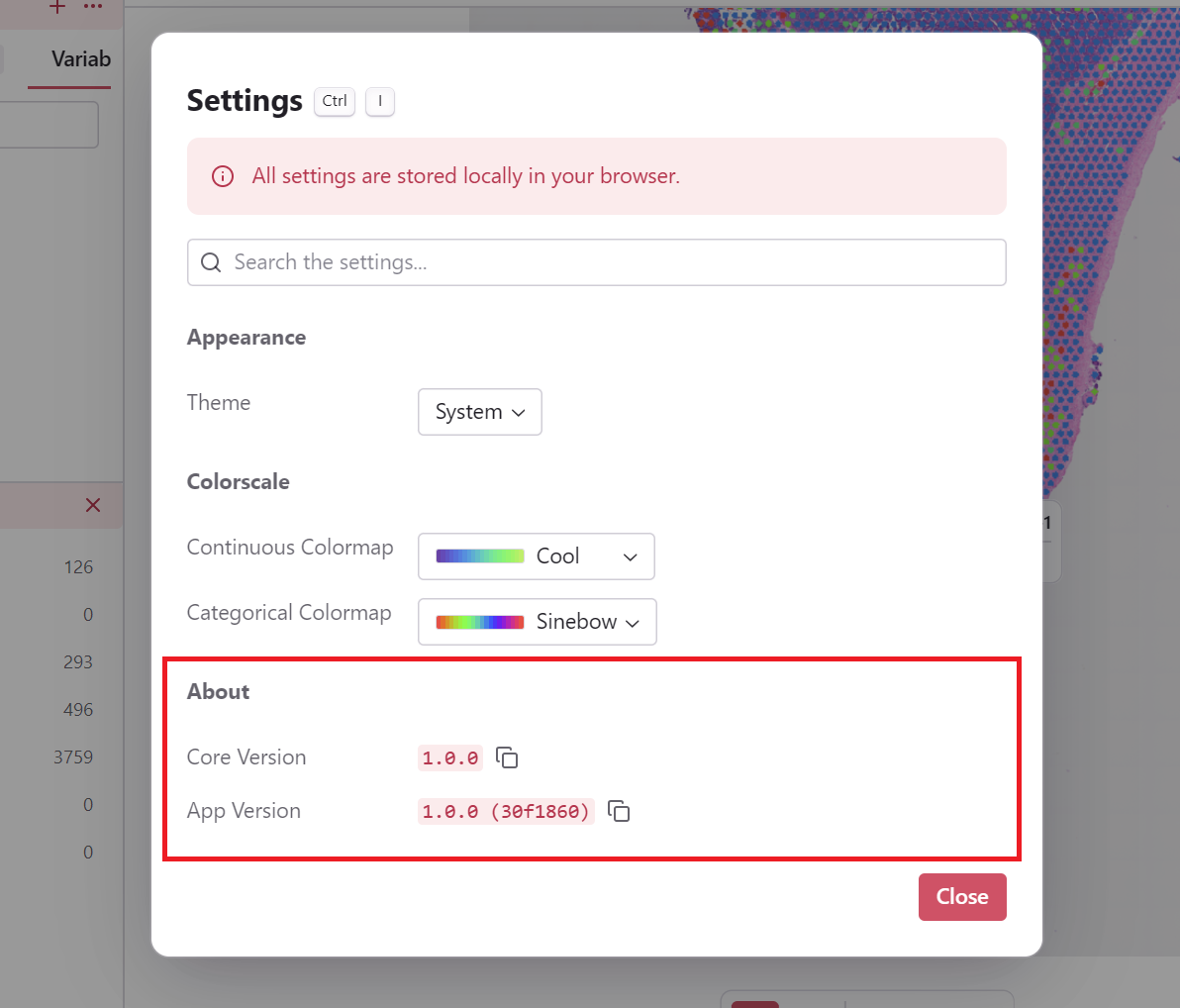
View application version information.
Version Display
| Field | Description |
|---|---|
| Core Version | Version of the core library |
| App Version | Application version with Git commit hash (if available) |
Copying Version Info
Click the Copy button next to each version field to copy to clipboard. Include this information when reporting bugs or requesting support.
Settings Storage
Local Storage
The following settings are stored in your browser's local storage:
| Setting | Description |
|---|---|
| Theme | Light, Dark, or System preference |
| App Color | Application accent color preference |
| Continuous Colormap | Default colormap for continuous features |
| Categorical Palette | Default palette for categorical features |
| Custom Category Colors | Per-feature category color customizations |
All settings:
- No account required
- Persist on your device
- Are reset when clearing browser data
Per-Browser
- Settings are specific to each browser
- Different devices have separate settings
- No automatic sync between browsers
Troubleshooting
Settings Not Saving
- Ensure browser allows local storage
- Check privacy/cookie settings
- Disable strict privacy modes temporarily
Theme Not Applying
- Try selecting a specific theme instead of System
- Check your OS dark mode settings
- Refresh the page if needed
Related Topics
- Interface Overview - Application layout
- Quick Start - Getting started guide
- Color Mapping - Detailed colormap usage