Appearance
Lasso Selection
Core Feature
This feature is available in all Portrai Explorer deployments.
Lasso selection allows you to interactively draw regions on the map or scatter plot to select specific data points. Selected points can be used for subsetting and analysis.
Activating Selection Mode
From the Mode Switcher
- Locate the mode switcher at the bottom-center of the map viewer
- Click the Selection button (Lasso icon)
- The button highlights to indicate Selection mode is active
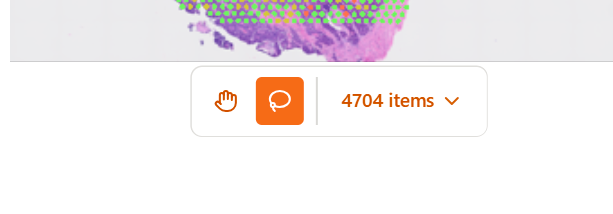
Mode Indicator
When Selection mode is active:
- The Lasso icon appears highlighted/selected
- The cursor changes to indicate drawing mode
- The Pan button appears unselected
Drawing a Lasso Selection
Basic Drawing
- Start - Click on the map where you want to begin
- Draw - Hold and drag to draw a closed shape around your region of interest
- Complete - Release the mouse button to close the selection
Tips for Drawing
- Draw a closed shape - The selection automatically closes when you release
- Smooth movements - Draw steadily for accurate selections
- Encompass points - Ensure desired points are inside the boundary
- Redo if needed - Draw a new selection to replace the previous one
Selection Results
Point Count
After completing a selection, the toolbar displays the count of selected points:
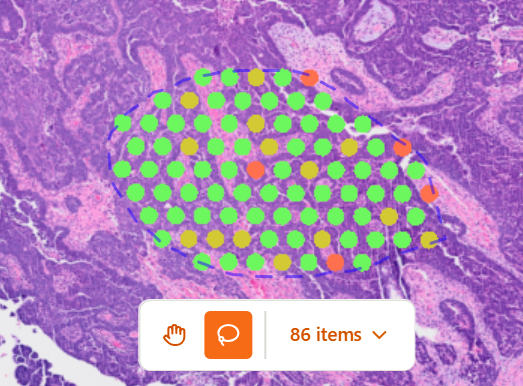
Click the Items dropdown to see available actions for selected points.
Visual Feedback
Selected points are highlighted on the map:
- Points inside the lasso appear distinct from unselected points
- The lasso boundary may remain visible until cleared
Using Selections
Add Selection to Subset
Save your lasso selection as a subset condition:
- Complete your lasso selection
- Click the Items dropdown in the toolbar
- Select Add selection to subset
- The selection is added to the Subset

Once added, the lasso condition:
- Appears in the Subset Editor
- Can be combined with other conditions using AND/OR
- Persists even after drawing new selections
- Can be named for easy identification
Selection in Different Views
Spatial Coordinates
Lasso selections in spatial view:
- Select points based on physical tissue location
- Useful for defining anatomical regions
- Saved with spatial coordinate information
Embedding Views (UMAP/t-SNE)
Lasso selections in embedding views:
- Select points based on transcriptional similarity
- Groups cells that cluster together in reduced dimensions
- Saved with embedding column reference
Scatter Plot
Lasso selections on scatter plots:
- Select points based on X/Y axis values
- Useful for selecting specific value ranges
- Saved with axis column references
- Workspace-global — the selection is shared across every scatter plot in the dashboard, with only one active at a time (drawing a new lasso in any plot clears the previous plot's outline)
Clearing Selections
Draw New Selection
Drawing a new lasso automatically replaces the previous selection. On the Plot dashboard the lasso is shared across every scatter plot — only one selection is active at a time, so drawing a new lasso in any plot replaces the previous one and clears the earlier plot's outline.
Return to Pan Mode
Click the Pan button to exit Selection mode. The current selection remains until you draw a new one or clear it through subsets.
Lasso Conditions in Subsets
When a lasso selection is added to the subset, it becomes a Lasso Condition:
Lasso Condition Properties
| Property | Description |
|---|---|
| Name | Auto-generated or custom name |
| Type | Source view (Spatial, UMAP, t-SNE, Scatter Plot) |
| Polygon | Stored coordinate boundary |
Combining Lasso Conditions
Multiple lasso conditions can be combined:
- AND - Points must be in all selected regions
- OR - Points can be in any selected region
This enables complex spatial queries like "cells in Region A AND Region B" or "cells in Region A OR Region B".
Best Practices
Accurate Selections
- Zoom in for precise selection of small regions
- Zoom out to select larger areas efficiently
- Use embeddings to select transcriptionally similar cells regardless of location
Workflow Integration
- Explore first - Use Pan mode to understand your data
- Select purposefully - Switch to Selection mode with a specific goal
- Save important selections - Add meaningful selections to subsets
- Combine with other conditions - Use lasso with feature-based conditions
Performance
- Large selections with many points may take a moment to process
- Subsetting updates after lasso selection may have slight delay with big datasets
Troubleshooting
Selection Not Working
- Ensure Selection mode is active (Lasso icon highlighted)
- Check that you're clicking and dragging on the map area
- Verify data points are loaded and visible
Wrong Points Selected
- Zoom in for more precise selection
- Check the current projection mode (Spatial vs. Embedding)
- Verify you're selecting in the intended coordinate space
Count Shows Zero
- The lasso may not contain any data points
- Check if subsets are excluding all points
- Ensure the selection is closed properly
Related Topics
- Subset - Work with saved lasso conditions
- Map Viewer - Map viewer interaction modes
- Scatter Plot - Lasso selection on plots